How to Take Backup and Restore Company Data in TallyPrime
Learn how to take backup and restore company data in TallyPrime with this complete step-by-step guide. Protect your business data from loss, crashes, or errors with easy backup and recovery methods.
Introduction
In today’s fast-paced digital world, your business data is one of your most valuable assets. Whether you run a small shop, manage a growing company, or handle accounts professionally, losing your financial data can cause serious problems. This is where TallyPrime, one of the most trusted accounting software solutions, plays an important role.
TallyPrime not only helps you manage your accounts efficiently but also provides powerful features to secure your company data. One of the most important features is the ability to take backups and restore data whenever needed.
Understanding the Importance of Data Backup in TallyPrime
Data backup is the process of creating a copy of your company data so that it can be restored in case of data loss. Imagine working for months or years and suddenly losing all your accounting records due to a system crash or virus attack. Without backup, recovery becomes almost impossible.
Why Backup is Important in TallyPrime
Before diving into the steps, let’s understand why backups are crucial:
– Protects data from hardware failure
– Prevents loss due to accidental deletion
– Safeguards against virus or ransomware attacks
– Helps in smooth data migration
– Ensures business continuity
Types of Backup in TallyPrime
Manual Backup – Taken by the user whenever required
Automatic Backup – Scheduled backups using external tools
3.External Backup – Backup stored on USB drives or external hard disks.
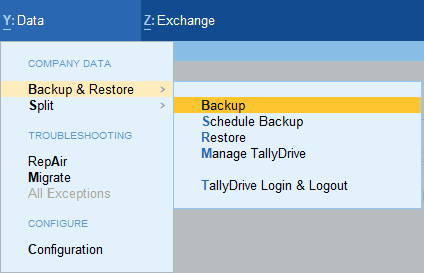
How to Take Backup in TallyPrime
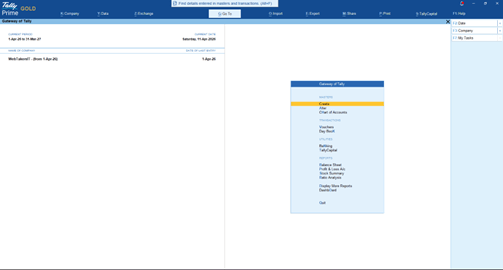
Step 1: Open TallyPrime
First, open TallyPrime on your computer
You will see the Gateway of Tally screen
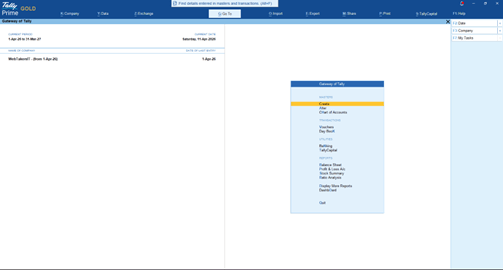
Step 1: Open TallyPrime
First, open TallyPrime on your computer
You will see the Gateway of Tally screen
Step 3: Select Source (Company Data Location)
In the Source field, select where your company data is stored
By default, it shows something like:
C:\Users\Public\TallyPrime\Data
👉 If your data is stored somewhere else:
Click on the path
Press Backspace
Enter the correct location
Step 4: Select Companies for Backup
You will see a list of companies
Select:
One company → Press Spacebar
Multiple companies → Select one by one using Spacebar
All companies → Press Ctrl + A
Step 5: Choose Destination (Where Backup Will Be Saved)
In the Destination field, choose where you want to save the backup
Recommended places:
-External Hard Drive
-Pen Drive
-Different folder (not same drive)
Example: D:\Tally Backup\
Step 6: Start Backup Process
After selecting everything
Press Enter
Tally will start backing up your data
Step 7: Backup Completed
Once done, you will see a confirmation message
Your backup is now safely stored
Best Practices for Taking Backup
– Always store backups in multiple locations
– Use external drives or cloud storage
– Take backups regularly (daily or weekly)
– Maintain version-wise backups
– Use proper naming conventions
How to Restore Company Data in TallyPrime
Step 1: Open TallyPrime
Open TallyPrime
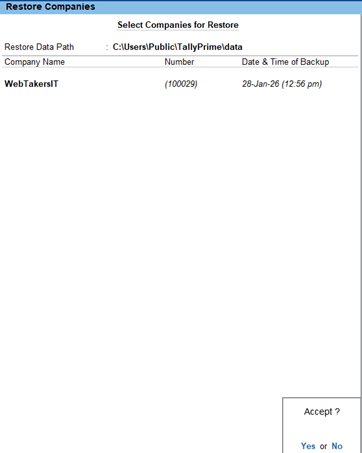
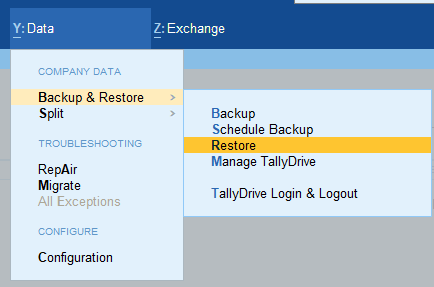
Step 2: Go to Restore Option
Press Alt + Y
Select Restore
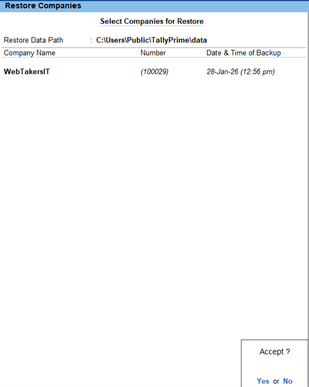
Step 3: Select Backup Source
Choose the folder where backup is stored
Example: D:\Tally Backup\
Step 4: Select Destination Folder
Choose where you want to restore data
Default: C:\Users\Public\TallyPrime\Data
Step 5: Select Company
Select the company you want to restore
Common Errors During Backup and Restore (With Solutions)
Incorrect Path Error
Solution: Double-check folder location.
Access Denied Error
Solution: Run TallyPrime as Administrator.
Backup Not Found
Solution: Ensure correct folder selection.
Corrupted Backup File
Solution: Use another backup copy.
Conclusion
Taking backup and restoring company data in TallyPrime is a simple yet powerful feature that ensures your business data remains safe and recoverable. By following the steps and best practices mentioned above, you can protect your accounting data from unexpected situations and ensure smooth business operations.
How often should I take backup in TallyPrime?
You should take backups daily or weekly depending on your business activity.
Is it necessary to enable security?
Yes, you can restore backup data on any system with TallyPrime installed.
Where should I store backups?
It is recommended to store backups on external drives and cloud storage.
What happens if backup is corrupted?
You should keep multiple backup copies to avoid data loss.
Is backup automatic in TallyPrime?
Answer: No, backup is manual but can be scheduled externally.